
What is OpenClaw

OpenClaw is an open-source, self-hosted AI agent gateway that lets you deploy a personal AI assistant on your own machine and interact with it through any chat platform — WhatsApp, Telegram, Discord, iMessage, Feishu/Lark, Slack, Signal, and more.
Unlike cloud-only AI tools, OpenClaw runs locally, keeps your data private, and gives your AI assistant persistent access to your files, tools, and workflows.
Core capabilities:
- Local-first — your data stays on your machine; no server-side storage
- Multi-platform — one agent, many chat apps; switch devices seamlessly
- Multi-model — swap between Anthropic, OpenAI, Google Gemini, DeepSeek, Ollama, and 30+ providers with a config change
- Extensible — 5,400+ community Skills via ClawHub; build your own in minutes
- Always on — runs as a background daemon; proactive via Cron, Heartbeat, Task Flow, and Webhooks
- Multi-agent — run multiple isolated agents with different personalities, models, and tool sets
How OpenClaw Works
OpenClaw follows a gateway architecture — a central process connects chat platforms to AI agents through a unified message bus.
┌─────────────────────────────────────────────────────────┐
│                   Application Layer                      │
│   WebChat  ·  macOS App  ·  CLI  ·  Control UI (Admin)  │
├─────────────────────────────────────────────────────────┤
│                   Gateway Layer                          │
│   WebSocket Server  ·  Message Routing  ·  Sessions     │
├─────────────────────────────────────────────────────────┤
│                   Channel Layer                          │
│   WhatsApp · Telegram · Discord · Slack · Feishu · ...  │
├─────────────────────────────────────────────────────────┤
│                   Agent Layer                            │
│   System Prompt  ·  Tool Execution  ·  Memory Retrieval  │
├─────────────────────────────────────────────────────────┤
│                   Model Layer                            │
│   Claude · GPT · Gemini · DeepSeek · Ollama · ...       │
└─────────────────────────────────────────────────────────┘
Message flow:
- User sends a message on any chat platform
- The channel adapter converts it to OpenClaw’s internal format
- Gateway routes it to the correct agent session based on binding rules
- The agent assembles context (system prompt + memory + tools), calls the LLM
- The response flows back through the gateway to the originating channel
Core Design Principles
| Principle | Description |
|---|---|
| Self-hosted | Runs on your machine — laptop, VPS, Docker, or cloud VM. You own the data. |
| Platform-agnostic | Same agent across any chat app. Add or remove channels without touching agent logic. |
| Model-flexible | No vendor lock-in. Switch models per agent, per task, or set up automatic fallback chains. |
| Skill-extensible | Skills are markdown-based instruction files. Install from ClawHub or write your own. |
| Agent-isolated | Each agent has its own workspace, sessions, memory, auth, and skill set. |
| Proactive | Not just reactive — Cron, Heartbeat, Task Flow, and Webhooks let the agent act on its own. |
System Architecture in Depth
OpenClaw uses a five-layer architecture designed for extensibility and isolation:
Gateway (the core):
- WebSocket server handling all client connections
- Message routing engine that maps incoming messages to agent sessions
- Session management with per-agent state isolation
- Tool execution coordinator that manages concurrent tool calls
Channel adapters:
- Each platform (WhatsApp, Telegram, etc.) has a dedicated adapter
- Adapters handle platform-specific auth, message formatting, and media
- New channels can be added via plugins without modifying the gateway
Agent runtime:
- System prompt assembly from workspace files (SOUL.md, USER.md, IDENTITY.md)
- Tool registration and execution sandbox
- Memory retrieval pipeline (Active Memory, Memory Wiki)
- Conversation context management with token budgeting
Model abstraction:
- Unified interface across 35+ LLM providers
- Automatic fallback chains (primary → secondary → local)
- Per-agent model configuration
- WebSocket transport for low-latency streaming
Gateway Internals
The Gateway is the heart of OpenClaw. Every client — CLI, WebChat, chat platforms — connects through it via WebSocket.
Connection lifecycle:
Client                          Gateway
  │                                │
  ├── req:connect (identity) ────▶ │
  │                                ├── authenticate
  │ ◀── res (ok) + hello-ok ──────┤
  │                                │
  │ ◀── event:presence ───────────┤  (online status)
  │ ◀── event:tick ───────────────┤  (heartbeat)
  │                                │
  ├── req:agent (message) ───────▶ │
  │                                ├── route to agent session
  │                                ├── execute tools
  │                                ├── call LLM
  │ ◀── event:agent (stream) ─────┤  (partial response)
  │ ◀── res:agent (final) ────────┤  (complete response)
Key configuration:
{
  "gateway": {
    "port": 18789,
    "host": "127.0.0.1",
    "auth": {
      "mode": "token",
      "token": "your-secret-token"
    }
  }
}
Multi-Agent Architecture
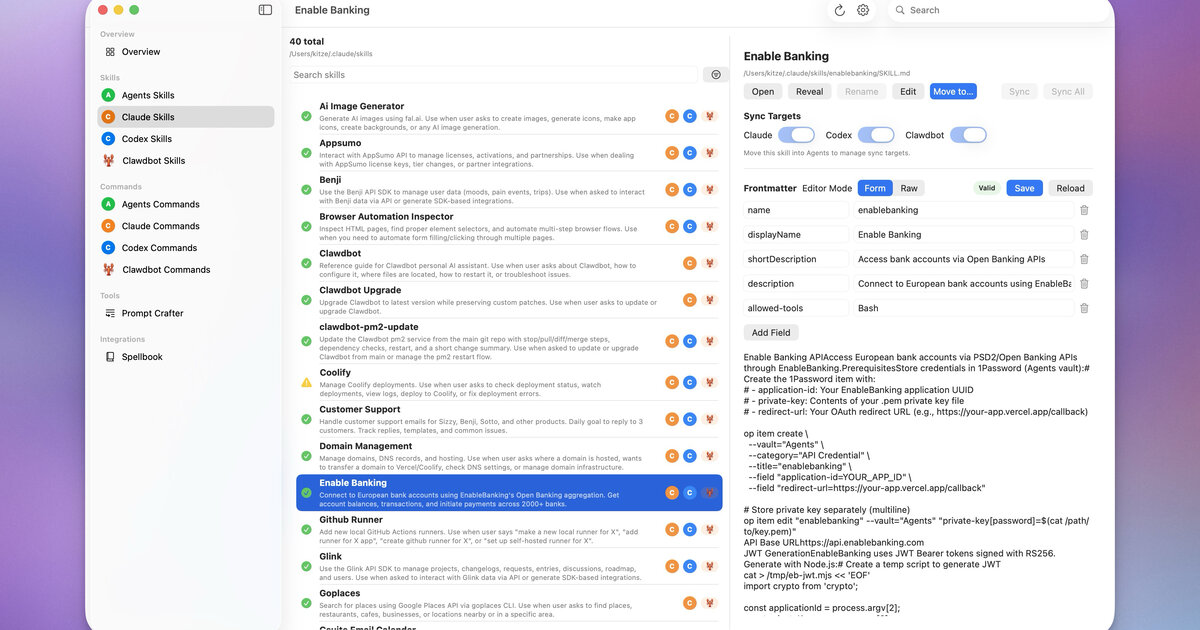 Multiple agents running side by side in the Control UI — via openclaw/openclaw
OpenClaw supports running multiple agents in parallel, each fully isolated:
| Isolation Dimension | Description |
|---|---|
| Workspace | Each agent has its own directory with SOUL.md, USER.md, etc. |
| Sessions | Independent conversation histories |
| Auth | Separate API keys and model configurations |
| Memory | Independent memory stores |
| Skills | Can load different skill sets per agent |
Example topology:
Gateway
├── WhatsApp ──▶ "alex" agent (personal assistant)
├── Telegram ──▶ "work" agent (coding helper)
├── Discord  ──▶ "coding" agent (pair programmer)
└── Feishu   ──▶ "team" agent (team coordinator)
Each agent has its own workspace at ~/.openclaw/agents/<agentId>/agent/.
OpenClaw vs ChatGPT vs Claude Code
| Feature | ChatGPT | Claude Code | OpenClaw |
|---|---|---|---|
| Where it runs | Cloud | Local terminal | Local (any OS) |
| Data privacy | Server-side storage | Local | Local |
| Chat app integration | None | None | WhatsApp / Telegram / Discord / iMessage / Feishu / Slack |
| Access local files | No | Yes | Yes |
| Custom skills | GPTs (limited) | No | 5,400+ via ClawHub |
| Always on | Browser required | Terminal required | Background daemon |
| Multi-agent | No | No | Multiple isolated personas |
| Proactive | No | No | Cron / Heartbeat / Task Flow / Webhooks |
| Primary use | General chat | Coding assistant | Personal AI assistant |
When to use OpenClaw:
- You want an AI assistant that’s always reachable on your phone
- You need it to access local files, run commands, and automate tasks
- You want full data privacy with local execution
- You need multi-platform access from a single agent
- You want to extend capabilities with community skills
Ecosystem & Community
The OpenClaw ecosystem extends far beyond the core gateway:
| Component | Description |
|---|---|
| ClawHub | Public skill registry with 5,400+ community skills |
| Control UI | Web-based admin dashboard for managing your gateway |
| OpenClaw Manager | React + Tailwind web UI for multi-gateway management |
| ClawX | Desktop app for autonomous agent tasks |
| ClawPanel | Tauri v2 management panel |
| Composio | Managed OAuth integration for 1,000+ external services |
| MyClaw | One-click cloud-hosted OpenClaw instances |
Community resources:
- GitHub: github.com/openclaw/openclaw
- Discord: discord.com/invite/clawd
- ClawHub: clawhub.com
- Skills catalog: github.com/VoltAgent/awesome-openclaw-skills (50k+ stars)
Installation Methods
Choose the installation method that fits your setup:
| Method | Difficulty | Cost | Best For |
|---|---|---|---|
| npm (official) | Medium | Free | Full control, developers |
| curl installer | Easy | Free | macOS / Linux users |
| Docker | Medium | Free | Server deployment |
| EasyClaw | Easy | Free | Beginners, zero-config |
| Cloud VPS | Easy | Paid | 24/7 uptime, remote access |
| Managed (MyClaw) | Easiest | Paid | No server management |
npm Installation (Recommended)
# Requires Node.js 22+
node -v  # verify

# Install globally
npm install -g openclaw@latest

# Run onboarding wizard
openclaw onboard
curl Installer
# macOS / Linux
curl -fsSL https://openclaw.ai/install.sh | bash

# Windows (PowerShell)
iwr -useb https://openclaw.ai/install.ps1 | iex
Docker
# Clone the docker-compose template
git clone https://github.com/openclaw/openclaw.git
cd openclaw/docker

# Configure environment
cp .env.example .env
# Edit .env with your API keys

# Start
docker compose up -d
Cloud Deployment Options
| Provider | Starting Price | Notes |
|---|---|---|
| Tencent Cloud Lighthouse | ~$3/mo | Pre-built OpenClaw image |
| Alibaba Cloud Wuying | Pay-as-you-go | Cloud desktop with OpenClaw |
| Volcengine | ~$1.5/mo | Budget-friendly VPS |
| Cloudflare Workers | $5/mo | Global CDN, needs R2 config |
| MyClaw | Managed | One-click, 24/7 uptime |
System Requirements
| Requirement | Minimum | Recommended |
|---|---|---|
| Node.js | 22.x | 24.x |
| RAM | 512 MB | 2 GB+ |
| Disk | 200 MB | 1 GB+ (for skills, memory) |
| OS | macOS 12+, Ubuntu 20.04+, Windows 10+ (WSL2) | macOS, Linux |
| Network | Internet (for API calls) | Stable broadband |
Platform notes:
- macOS — Best experience. Native launchd daemon support.
- Linux — Full support. systemd service available.
- Windows — WSL2 strongly recommended over native PowerShell.
- ARM (Raspberry Pi) — Works but slower; good for lightweight setups.
Onboarding Wizard
The openclaw onboard command walks you through initial setup in ~5 minutes:
openclaw onboardThe wizard covers 10 steps:
- Accept risk disclaimer
- Choose setup mode (QuickStart / Advanced)
- Select AI model provider (Anthropic / OpenAI / Google / DeepSeek / Ollama / …)
- Enter API key
- Choose chat platform (Telegram / Feishu / Discord / WhatsApp / …)
- Set gateway port (default: 18789)
- Select initial skills
- Configure additional API keys (web search, etc.)
- Enable hooks (optional)
- Complete — gateway starts automatically
Manual configuration (skip wizard):
# Configure model provider
openclaw models auth login --provider anthropic

# Add a chat channel
openclaw channels add

# Start gateway
openclaw gateway start
Model Provider Configuration
OpenClaw supports 35+ model providers out of the box:
| Provider | Models | Notes |
|---|---|---|
| Anthropic | Claude 4.5 Sonnet, Claude 4 Haiku, … | Recommended for coding |
| OpenAI | GPT-5.4, GPT-5.4-pro, o3, … | Via API key or ChatGPT OAuth |
| Gemini 2.5 Pro, Gemini 2.5 Flash, … | Free tier available | |
| DeepSeek | DeepSeek-V3, DeepSeek-R1, … | Best cost-performance ratio |
| Ollama | Local models (Llama, Mistral, Qwen, …) | Fully offline |
| MiniMax | MiniMax-Text-01, … | Chinese market |
| Zhipu GLM | GLM-4, … | Chinese market |
| Qwen | Qwen-Max, Qwen-Plus, … | Alibaba Cloud |
Configuration example:
{
  "models": {
    "mode": "merge",
    "providers": {
      "anthropic": {
        "apiKey": "sk-ant-..."
      },
      "openai": {
        "apiKey": "sk-..."
      },
      "ollama": {
        "baseUrl": "http://localhost:11434"
      }
    },
    "defaults": {
      "main": "anthropic/claude-4-5-sonnet",
      "fast": "anthropic/claude-4-haiku"
    },
    "fallback": [
      "openai/gpt-5.4",
      "google/gemini-2.5-pro"
    ]
  }
}
Key concepts:
mode: "merge"— keeps built-in providers and adds your custom onesdefaults.main— primary model for complex tasksdefaults.fast— lightweight model for quick responses (/fasttoggle)fallback— automatic failover chain
Gateway Startup & Management
# Start (foreground)
openclaw gateway start

# Start as background daemon
openclaw gateway start --daemon

# Stop
openclaw gateway stop

# Restart (after config changes)
openclaw gateway restart

# Check status
openclaw status

# View logs
openclaw gateway logs
Daemon configuration:
| OS | Mechanism | Auto-start |
|---|---|---|
| macOS | launchd | openclaw onboard --install-daemon |
| Linux | systemd | openclaw service install |
| Docker | Docker restart policy | restart: unless-stopped |
Hot reload: Most config changes in openclaw.json take effect after openclaw gateway restart. Workspace files (SOUL.md, USER.md, etc.) take effect immediately without restart.
Control UI & Dashboard
OpenClaw includes a built-in web interface at http://127.0.0.1:18789/:
| Feature | Description |
|---|---|
| Dashboard | Overview of agent status, active sessions, system health |
| WebChat | Chat directly with your agent from the browser |
| Configuration | View and edit gateway settings |
| Agent view | Inspect agent workspaces, skills, and memory |
| Session view | Browse and manage conversation sessions |
| Command palette | Quick actions via keyboard shortcut |
| Message export | Export conversation history |
Mobile support: The Control UI is responsive — bottom tab navigation on mobile, sidebar on desktop.
Slash commands in WebChat:
/status— gateway and agent status/models— list available models/skills— list installed skills/sessions— list active sessions/fast— toggle fast model mode
Sending Your First Message
 The iOS client in conversation with an OpenClaw agent — via openclaw/openclaw
After starting the gateway, you have several ways to interact:
Option 1: WebChat (quickest)
Open http://127.0.0.1:18789/chat in your browser
Type: "Hello! What can you do?"
Option 2: CLI
openclaw chat
# Type your message, get a response
Option 3: Chat platform
Send a DM to your bot on Telegram / Feishu / Discord / etc.Try these commands:
"What's the weather in San Francisco?"
"List the files in my home directory"
"Create a reminder: buy groceries tomorrow at 5pm"
"Search the web for the latest OpenClaw release notes"
"Summarize my recent emails"
Security & Authentication
Gateway authentication is mandatory — you must explicitly set an auth mode:
# Token-based (recommended)
openclaw config set gateway.auth.mode token
openclaw config set gateway.auth.token "$(openssl rand -hex 24)"

# Or password-based
openclaw config set gateway.auth.mode password
openclaw config set gateway.auth.password "your-strong-password"

openclaw gateway restart
Channel-level security:
{
  "channels": {
    "telegram": {
      "dmPolicy": "pairing",
      "allowFrom": ["your_telegram_user_id"]
    },
    "feishu": {
      "dmPolicy": "pairing"
    }
  }
}| Policy | Description |
|---|---|
pairing | Users must enter a one-time pairing code (default, recommended) |
open | Anyone can message the bot (use with caution) |
allowlist | Only explicitly listed user IDs |
Group chat security:
{
  "channels": {
    "telegram": {
      "groupPolicy": "allowlist",
      "groups": {
        "allowed-group-id": {
          "requireMention": true
        }
      }
    }
  }
}
Channel Overview
 One gateway, many chat platforms — via openclaw/openclaw
OpenClaw supports 8+ chat platforms through a unified channel system. Each channel adapter handles platform-specific authentication, message formatting, and media handling.
| Channel | Setup Difficulty | Features |
|---|---|---|
| Telegram | Easy | Bot API, inline mode, groups, media |
| Discord | Medium | Servers, channels, threads, slash commands |
| Feishu/Lark | Medium | Interactive cards, WebSocket, groups, enterprise |
| Hard | QR pairing, media, group support | |
| Slack | Medium | Block Kit, webhooks, workspace apps |
| iMessage | Medium | macOS only, via BlueBubbles |
| Signal | Hard | Privacy-first, requires signal-cli |
| WebChat | Easiest | Built-in, zero config |
Common configuration pattern:
{
  "channels": {
    "<channel-name>": {
      "enabled": true,
      "...credentials...": "...",
      "dmPolicy": "pairing",
      "groupPolicy": "disabled"
    }
  }
}
Telegram Configuration
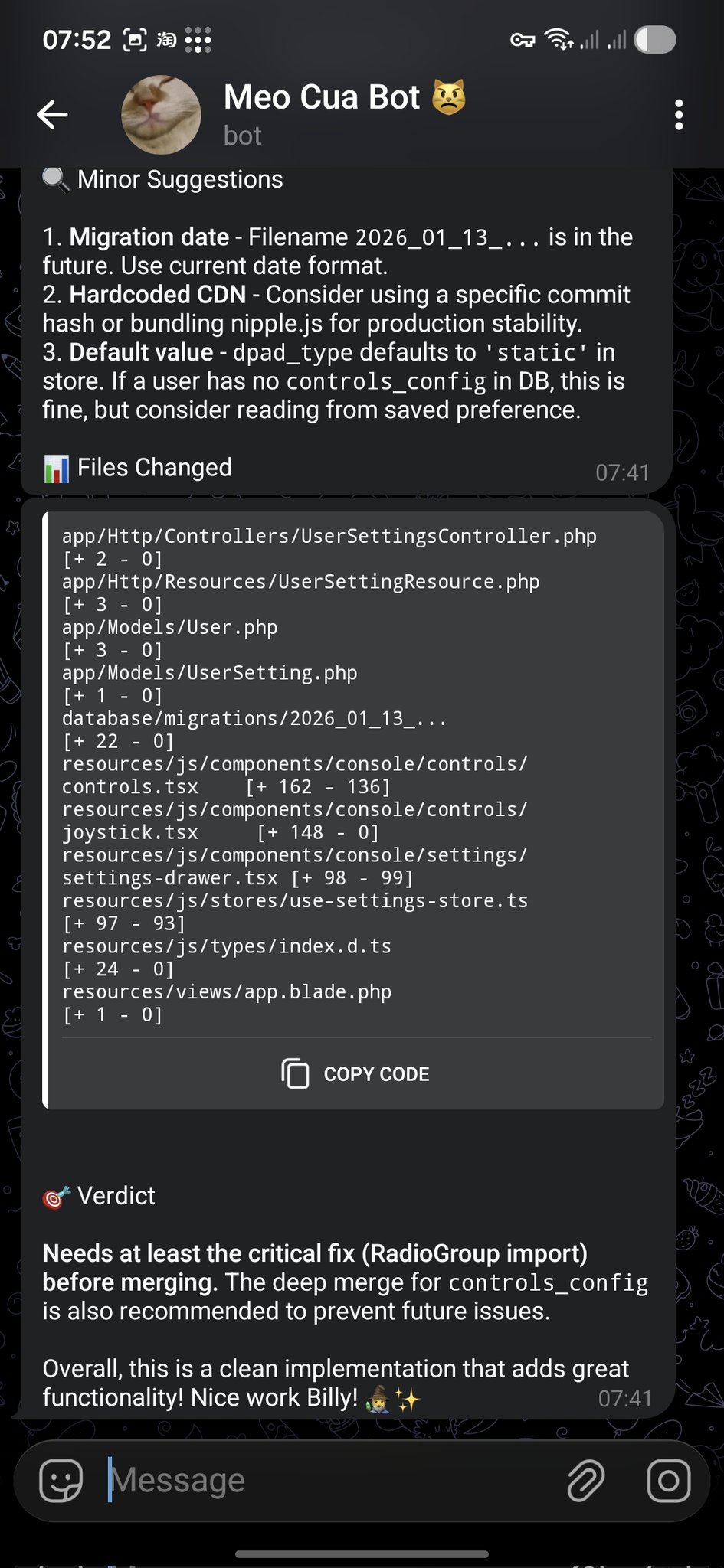 A code-review notification delivered to Telegram — via openclaw/openclaw
Telegram is the easiest channel to set up — you only need a bot token.
Step 1: Create a bot
1. Open Telegram, search for @BotFather
2. Send /newbot
3. Choose a name and username
4. Copy the bot token
Step 2: Configure OpenClaw
openclaw channels add
# Select "Telegram"
# Paste the bot token
Or edit openclaw.json directly:
{
  "channels": {
    "telegram": {
      "token": "123456:ABC-DEF1234ghIkl-zyx57W2v1u123ew11",
      "dmPolicy": "pairing"
    }
  }
}
Step 3: Restart and test
openclaw gateway restart
# Send a message to your bot in Telegram
Advanced options:
{
  "channels": {
    "telegram": {
      "token": "...",
      "allowFrom": ["123456789"],
      "groups": {
        "*": { "requireMention": true }
      },
      "streaming": true,
      "replyToMode": "quote"
    }
  }
}
Discord Configuration
Step 1: Create a Discord application
1. Go to discord.com/developers/applications
2. Click "New Application"
3. Go to "Bot" tab → "Add Bot"
4. Copy the bot token
5. Enable "Message Content Intent" under Privileged Gateway Intents
6. Generate an OAuth2 URL with "bot" scope and appropriate permissions
7. Use the URL to invite the bot to your server
Step 2: Configure OpenClaw
{
  "channels": {
    "discord": {
      "token": "your-discord-bot-token",
      "dmPolicy": "pairing"
    }
  }
}
Step 3: Restart
openclaw gateway restartFeishu / Lark Configuration
Feishu (飞书) is the most popular channel in the Chinese market. It supports interactive message cards, WebSocket-based event subscription, and enterprise-grade security.
Step 1: Create a Feishu app
1. Go to open.feishu.cn
2. Create an enterprise self-built app
3. Enable "Bot" capability
4. Copy App ID and App Secret
5. Configure permissions (batch import recommended)
6. Enable event subscription: WebSocket mode, event: im.message.receive_v1
7. Publish the app
Required permissions:
im:message— read messagesim:message:send_as_bot— send messages as botcontact:contact.base:readonly— read contact info
Step 2: Install the Feishu plugin
openclaw plugins install @openclaw/feishuStep 3: Configure
{
  "channels": {
    "feishu": {
      "appId": "cli_xxxxx",
      "appSecret": "xxxxx",
      "dmPolicy": "pairing"
    }
  }
}
Advanced: Streaming output
{
  "channels": {
    "feishu": {
      "appId": "...",
      "appSecret": "...",
      "streaming": true,
      "replyToMode": "quote"
    }
  }
}
Advanced: Interactive cards
Feishu supports rich interactive message cards with buttons, forms, and callback handlers. See the Recipes tab for card implementation examples.
WhatsApp, Signal & iMessage
WhatsApp requires QR code pairing (similar to WhatsApp Web):
openclaw channels add
# Select "WhatsApp"
# Scan the QR code with your phone
{
"channels": {
"whatsapp": {
"dmPolicy": "pairing"
}
}
}Note: WhatsApp uses the unofficial WhatsApp Web protocol. Use a dedicated number to avoid account issues.
Signal
Signal integration requires signal-cli running as a daemon:
# Install signal-cli
# Register or link as a secondary device
# Configure OpenClaw to connect
iMessage (macOS only)
iMessage requires BlueBubbles server running on a Mac:
{
  "channels": {
    "imessage": {
      "blueBubblesUrl": "http://localhost:1234",
      "password": "your-bluebubbles-password"
    }
  }
}
Multi-Channel Routing
When running multiple channels, you can route different channels to different agents:
{
  "bindings": [
    { "channel": "whatsapp", "agentId": "personal" },
    { "channel": "telegram", "agentId": "work" },
    { "channel": "discord",  "agentId": "coding" },
    { "channel": "feishu",   "agentId": "team" }
  ]
}
Binding rules are evaluated in order — first match wins. You can also filter by chat type, group ID, or user ID:
{
  "bindings": [
    {
      "channel": "telegram",
      "agentId": "vip-support",
      "match": { "userId": "vip-user-123" }
    },
    {
      "channel": "telegram",
      "agentId": "general"
    }
  ]
}
Workspace Overview
Each agent has a workspace directory containing configuration files that define its personality, behavior, and knowledge:
~/.openclaw/workspace/
├── SOUL.md        # Core principles and behavioral guidelines
├── IDENTITY.md    # Name, persona, vibe
├── USER.md        # Information about the human
├── AGENTS.md      # Working specifications and rules
├── MEMORY.md      # Long-term curated memory
├── HEARTBEAT.md   # Periodic check task list
├── TOOLS.md       # Local tool configuration notes
├── BOOTSTRAP.md   # First-run initialization instructions
└── skills/        # Agent-specific local skills
Key concept: These files are the agent’s “operating system.” The agent reads them at session start and follows their instructions. Changes take effect immediately — no gateway restart needed.
SOUL.md — Core Principles
SOUL.md is the agent’s constitution — it defines personality, tone, and behavioral boundaries:
# SOUL.md

Be genuinely helpful, not performatively helpful.
Skip the "Great question!" — just help.

Have opinions. An assistant with no personality is just a search engine.

Be resourceful before asking. Try to figure it out first.

Remember you're a guest. Treat access to someone's data with respect.

### Communication Style
- Concise by default, detailed when asked
- Use technical language with developers, plain language with others
- Admit mistakes quickly and fix them

### Safety Rules
- Never expose private data to external services
- Ask before executing destructive commands
- When uncertain, explain the trade-offs and let the human decide
IDENTITY.md — Role Definition
Give your agent a name and persona:
# IDENTITY.md

- **Name**: Jarvis
- **Creature**: AI assistant with a dry sense of humor
- **Vibe**: Reliable, warm, occasionally witty
- **Emoji**: 🤖
- **Language**: Default to English, switch to user's language when they speak
USER.md — User Context
Tell the agent about yourself:
# USER.md

- **Name**: John Doe
- **What to call them**: John
- **Timezone**: America/New_York
- **Occupation**: Software engineer
- **Preferences**:
  - Likes concise answers
  - Prefers TypeScript over JavaScript
  - Uses Vim keybindings
  - Don't disturb after 11pm unless urgent
- **Current projects**:
  - Building a SaaS dashboard (React + Node)
  - Learning Rust on weekends
AGENTS.md — Working Specifications
Define operational rules and session behavior:
# AGENTS.md

### Every Session
1. Read SOUL.md — remember who you are
2. Read USER.md — remember who you're helping
3. Read memory/YYYY-MM-DD.md — recent context

### Safety Rules
- Never leak private data
- Never execute destructive commands without confirmation
- When uncertain, ask before acting

### Group Chat Rules
- Don't reply to every message — quality over quantity
- Only respond when mentioned or when you can add value
- Keep responses shorter in group chats

### Tool Usage
- Prefer built-in tools over skills when possible
- Always verify file paths before writing
- Back up before destructive operations
Active Memory
Active Memory is a blocking memory sub-agent that runs before each response. It retrieves relevant preferences, context, and historical details to enrich the agent’s reply.
How it works:
- User sends a message
- Active Memory sub-agent runs a semantic search over the memory store
- Retrieved memories are injected into the agent’s context
- The main agent responds with enriched context
Configuration:
{
  "plugins": {
    "entries": {
      "active-memory": {
        "enabled": true,
        "agents": ["main"],
        "allowedChatTypes": ["direct"],
        "queryMode": "recent",
        "promptStyle": "balanced",
        "timeoutMs": 15000
      }
    }
  }
}| Option | Values | Description |
|---|---|---|
queryMode | recent, semantic, hybrid | How to search memories |
promptStyle | minimal, balanced, verbose | How much memory context to inject |
timeoutMs | number | Max time for memory retrieval |
Dreaming & Memory Wiki
Dreaming is OpenClaw’s long-term memory consolidation process. Like human sleep, it processes recent experiences and distills them into structured knowledge.
Memory Wiki compiles durable memories into a searchable knowledge vault using a claim / evidence structure:
Claim: "User prefers TypeScript over JavaScript"
Evidence:
  - 2026-01-15: User corrected agent to use .ts extension
  - 2026-02-03: User asked to migrate project to TypeScript
  - 2026-03-10: USER.md updated with TypeScript preference
Wiki commands:
# Initialize the wiki vault
openclaw wiki init

# Ingest memories into the wiki
openclaw wiki ingest

# Compile and resolve contradictions
openclaw wiki compile

# Search the wiki
openclaw wiki search "TypeScript preferences"

# Get a specific claim
openclaw wiki get "user-language-preference"
Configuration:
{
  "plugins": {
    "entries": {
      "memory-wiki": {
        "enabled": true,
        "vaultMode": "isolated",
        "renderMode": "obsidian",
        "search": {
          "backend": "shared"
        }
      }
    }
  }
}
Five-Layer Memory System
OpenClaw’s memory is organized in five layers, from fast/ephemeral to slow/permanent:
| Layer | Name | Storage | Lifespan | Use Case |
|---|---|---|---|---|
| L0 | Session context | In-memory | Single session | Current conversation |
| L1 | Daily memory | memory/YYYY-MM-DD.md | Days to weeks | What happened today |
| L2 | Long-term memory | MEMORY.md | Permanent | Curated important facts |
| L3 | Memory Wiki | Wiki vault | Permanent | Structured claims + evidence |
| L4 | External knowledge | Files, databases, web | Varies | Project docs, web search |
Data flow:
Conversation → L0 (session)
    ↓ (end of session)
Daily notes → L1 (memory/YYYY-MM-DD.md)
    ↓ (periodic consolidation)
Curated facts → L2 (MEMORY.md)
    ↓ (wiki compile)
Structured claims → L3 (Memory Wiki)
    ↓ (on demand)
External lookup → L4 (files, web, databases)
Maintenance:
- Daily: Agent writes to L1 automatically
- Weekly: Review L1 → promote important items to L2
- Monthly: Run
openclaw wiki compileto consolidate L2 → L3
Multi-Agent Collaboration
For complex workflows, multiple agents can collaborate:
Topology patterns:
| Pattern | Description | When to Use |
|---|---|---|
| Star | One coordinator delegates to N workers | General-purpose |
| Specialist | Each agent owns a domain | Clear domain boundaries |
| Reflector | One agent produces, another reviews | Quality-critical output |
Delegation via sessions:
# Agent A delegates to Agent B
sessions_send --agent coding --message "Review this PR"

# Agent A spawns a child agent
sessions_spawn --agent researcher --message "Find the latest benchmarks"
Design principles:
- Each agent should have a clear, non-overlapping responsibility
- Use shared workspace files (AGENTS.md) for cross-agent conventions
- Keep delegation explicit — the user should know when work is handed off
- Start with one agent; split only when you hit real complexity
Skills Overview
Skills are reusable instruction files that teach your agent how to do specific tasks. They follow the AgentSkills standard and can be installed from ClawHub or written by hand.
Skills vs Tools vs Plugins:
| Concept | What It Is | Example |
|---|---|---|
| Skill | A methodology / SOP | ”How to generate a weekly report” |
| Tool | A specific action | exec, read_file, web_search |
| Plugin | Adds a capability category | Feishu plugin, WhatsApp plugin |
| MCP | Connects to external systems | GitHub MCP, Slack MCP |
Skill loading priority:
- Workspace skills (
workspace/skills/) - Global skills (
~/.openclaw/skills/) - Bundled skills (shipped with OpenClaw)
ClawHub Ecosystem
ClawHub is the public skill registry for OpenClaw, hosting 5,400+ community skills.
Browsing skills:
# Search for skills
openclaw skills search "web scraping"

# Get info about a specific skill
openclaw skills info deep-research

# List installed skills
openclaw skills list --eligible
Quality filtering: The community-maintained awesome-openclaw-skills list (50k+ stars) applies strict filters:
| Filtered Out | Count |
|---|---|
| Spam / bot accounts | 4,065 |
| Duplicates | 1,040 |
| Low-quality | 851 |
| Crypto / finance | 886 |
| Malicious (security audit) | 373 |
| Total excluded | 7,215 |
Installing & Managing Skills
# Install from ClawHub
openclaw skills install deep-research

# Or via ClawHub CLI (for non-workspace contexts)
npx clawhub install deep-research

# List installed skills
openclaw skills list

# Check a skill for issues
openclaw skills check deep-research

# Update all skills
openclaw skills update --all

# Disable a skill
# In openclaw.json:
# "skills": { "entries": { "deep-research": { "enabled": false } } }
Manual installation:
Copy the skill folder to one of these locations:
| Scope | Path |
|---|---|
| Global | ~/.openclaw/skills/ |
| Workspace | <workspace>/skills/ |
Alternative: Paste a skill’s GitHub URL into your chat and ask the agent to install it.
Skill File Structure
A minimal skill is a single SKILL.md file:
skills/my-skill/
├── SKILL.md          # Required: instructions + frontmatter
├── skill.json        # Optional: metadata
├── scripts/          # Optional: helper scripts
│   └── run.py
└── requirements.txt  # Optional: dependencies
SKILL.md format:
---
name: daily-report
description: Generate a daily work report from git history and task lists
---

# Daily Report Generator

When the user asks for a daily report:

1. Run `git log --since="midnight" --oneline` to get today's commits
2. Check the task list for completed items
3. Format as a structured report:
   - **Completed**: items finished today
   - **In Progress**: items started but not finished
   - **Blocked**: items with unresolved dependencies
   - **Tomorrow**: planned items for next working day
4. Send the report to the configured channel
Environment requirements:
---
name: my-skill
description: My custom skill
metadata:
  openclaw:
    requires:
      bins: ["uv"]
      env: ["API_KEY"]
---
Popular Skill Categories
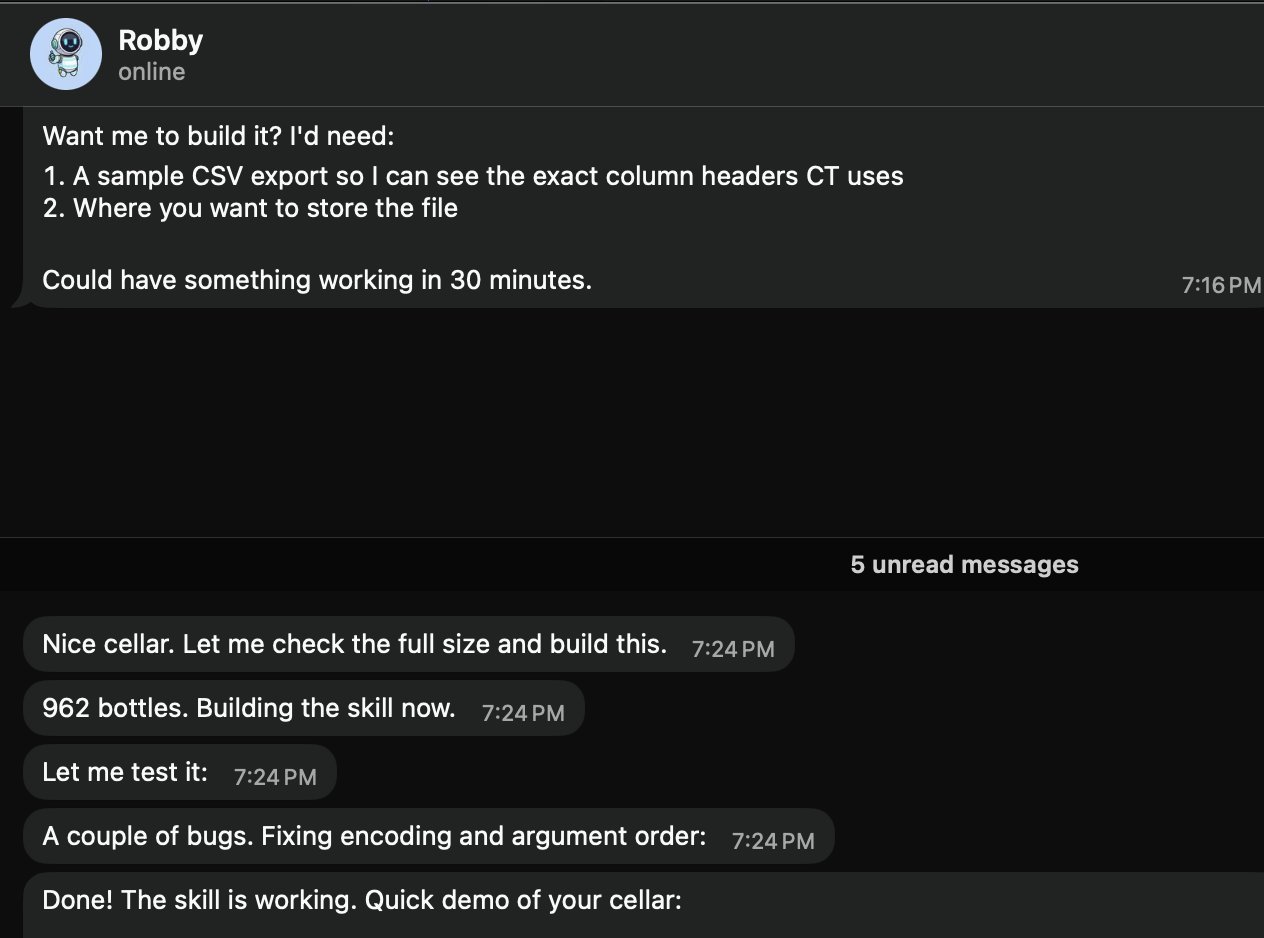 A community Skill tracking a wine cellar — via openclaw/openclaw
AI & Coding
| Skill | Description |
|---|---|
coding-agent | Delegate coding tasks to Codex, Claude Code, or Pi agents |
github | GitHub operations: PRs, Issues, CI, code search |
gemini | Use Gemini CLI for coding assistance |
claude-code | MCP integration for enhanced Claude Code |
Browser Automation
| Skill | Description |
|---|---|
browser-vision | Headless Chrome screenshots, web automation, visual debugging |
web-scraper | Access anti-scraping sites: WeChat/Twitter/Reddit |
agent-browser | Headless browser automation optimized for AI agents |
Search & Research
| Skill | Description |
|---|---|
deep-research | Multi-engine search + web extraction + structured analysis |
web-search | Brave Search + DuckDuckGo multi-engine search |
academic-research | Search academic papers using OpenAlex API |
Productivity
| Skill | Description |
|---|---|
notion | Notion integration |
obsidian | Obsidian notes |
apple-notes | Apple Notes integration |
apple-reminders | Apple Reminders integration |
Image & Video
| Skill | Description |
|---|---|
image-gen | Text-to-image, image-to-image generation |
video-gen | Video generation with Sora / Kling / Seedance / Veo 3 |
openai-image-gen | DALL-E image generation |
Smart Home
| Skill | Description |
|---|---|
sonoscli | Sonos speaker control |
openhue | Philips Hue light control |
spotify-player | Spotify playback control |
Custom Skill Development
Step 1: Create the skill directory
mkdir -p ~/.openclaw/skills/my-skillStep 2: Write SKILL.md
---
name: weather-checker
description: Check weather for any city and format a brief forecast
---

# Weather Checker

When asked about weather:

1. Use the `web_search` tool to search for "weather [city] forecast"
2. Extract: temperature, conditions, humidity, wind
3. Format as a brief, readable forecast
4. Include a recommendation (umbrella? sunscreen? jacket?)
Step 3: Test it
Ask your agent: "What's the weather in Tokyo?"Step 4: Publish to ClawHub (optional)
# Follow the ClawHub publishing guide
# Skills must pass security review before listing
Security & Skill Auditing
Treat third-party skills as untrusted code. Before installing:
- Read the source —
openclaw skills info <skill>shows the skill’s files - Check permissions — does it request access to sensitive tools or env vars?
- Run security scan — check the VirusTotal report on ClawHub
- Test in isolation — try the skill in a sandboxed workspace first
Recommended security tools:
| Tool | Description |
|---|---|
| VirusTotal | Built into ClawHub — check each skill’s scan report |
| Snyk Agent Scanner | Open-source skill security scanner |
| Agent Trust Hub | Community-maintained trust database |
Red flags:
- Skills that request
execaccess without clear justification - Skills that phone home to unknown endpoints
- Skills with obfuscated code or encoded strings
- Skills that request more env vars than their description suggests
Automation Overview
OpenClaw provides four automation pillars that let your agent act proactively:
| Mechanism | Metaphor | Precision | Use Case |
|---|---|---|---|
| Cron | Alarm clock | Exact schedule | ”Every day at 9am” |
| Heartbeat | Periodic check-in | Approximate interval | ”Check for new emails every 30 min” |
| Task Flow | Assembly line | Event-driven | ”When PR is merged → deploy → notify” |
| Webhooks | Doorbell | Instant, external trigger | ”GitHub event → analyze → notify” |
Decision guide:
- Need exact timing? → Cron
- Multiple checks can batch together? → Heartbeat
- Multi-step workflow with state? → Task Flow
- External system triggers the action? → Webhook
Cron Scheduled Tasks
Cron tasks run on a schedule — the most straightforward automation.
Three schedule types:
{
  "cron": {
    "jobs": [
      {
        "name": "one-time-reminder",
        "schedule": { "kind": "at", "at": "2026-06-20T10:00:00+08:00" },
        "payload": { "kind": "agentTurn", "message": "Reminder: team meeting in 30 min" },
        "sessionTarget": "isolated"
      },
      {
        "name": "hourly-check",
        "schedule": { "kind": "every", "everyMs": 3600000 },
        "payload": { "kind": "agentTurn", "message": "Check for new support tickets" },
        "sessionTarget": "isolated"
      },
      {
        "name": "daily-weather",
        "schedule": { "kind": "cron", "expr": "0 7 * * *", "tz": "Asia/Shanghai" },
        "payload": { "kind": "agentTurn", "message": "Check today's weather and send a brief forecast" },
        "sessionTarget": "isolated"
      }
    ]
  }
}
Payload types:
| Kind | Description |
|---|---|
agentTurn | Run the agent with a message in an isolated or main session |
systemEvent | Inject a system event into the main session |
Managing cron jobs:
openclaw cron list              # List all jobs
openclaw cron run --job <id>    # Trigger manually
openclaw cron runs --job <id>   # View execution history
Natural language creation (just tell your agent):
"Create a reminder: every weekday at 9:50am, remind me standup is in 10 minutes"Heartbeat — Proactive Agent
Heartbeat makes your agent periodically check for things to do, even without user input.
Configure HEARTBEAT.md:
# HEARTBEAT.md

### Checks (rotate through these, don't do all every time)
- [ ] Any urgent unread emails?
- [ ] Calendar events in the next 2 hours?
- [ ] GitHub notifications needing attention?
- [ ] Weather changes worth mentioning?

### Rules
- Only notify the user if something actionable was found
- Stay quiet during 23:00-08:00 unless urgent
- If nothing notable: return HEARTBEAT_OK
Heartbeat vs Cron:
| Feature | Heartbeat | Cron |
|---|---|---|
| Timing precision | Approximate (~1 min) | Exact |
| Batch multiple checks | Yes | No (one task per job) |
| Session context | Shared with main session | Isolated |
| Token cost | Lower (batched) | Higher (per-job overhead) |
Task Flow — Persistent Workflows
Task Flow (v2026.4+) enables multi-step, stateful workflows that survive gateway restarts:
Trigger → Step 1 → Wait for condition → Step 2 → Step 3 → NotifyExample: PR review pipeline
{
  "taskFlow": {
    "name": "pr-review",
    "trigger": { "kind": "webhook", "mapping": "github" },
    "steps": [
      {
        "name": "analyze",
        "action": "agentTurn",
        "message": "Analyze this PR for security issues and code quality"
      },
      {
        "name": "notify",
        "action": "deliver",
        "channel": "telegram",
        "template": "PR Review: {{summary}}"
      }
    ]
  }
}
Key features:
- State persistence across restarts
- Error handling with retry policies
- Conditional branching
- Human-in-the-loop approval gates
Webhooks — Event Triggers
Webhooks let external systems instantly trigger your agent when events happen.
Setup:
{
  "hooks": {
    "enabled": true,
    "token": "your-secret-token",
    "path": "/hooks",
    "defaultSessionKey": "hook:github",
    "allowedAgentIds": ["main", "hooks"],
    "mappings": [
      {
        "name": "github",
        "action": "agent",
        "agentId": "hooks",
        "deliver": true,
        "channel": "telegram",
        "messageTemplate": "GitHub event: {{action}} on {{repository.full_name}}\nTitle: {{pull_request.title}}{{issue.title}}\nURL: {{pull_request.html_url}}{{issue.html_url}}"
      }
    ]
  }
}
Test with curl:
curl -X POST http://127.0.0.1:18789/hooks/github \
  -H 'Authorization: Bearer your-secret-token' \
  -H 'Content-Type: application/json' \
  -d '{"action":"opened","pull_request":{"title":"Fix auth bug","user":{"login":"alice"},"html_url":"https://github.com/org/repo/pull/42"},"repository":{"full_name":"org/repo"}}'
Security:
- Generate a random token:
openssl rand -hex 24 - Use nginx reverse proxy to expose
/hooks/path only - Inject
Authorization: Bearer <token>at the proxy level
Standing Orders
Standing Orders are persistent instructions that apply across all sessions:
# In AGENTS.md or a dedicated file

### Standing Orders
- Always respond in the user's language
- Include code examples in TypeScript unless asked otherwise
- When summarizing, use bullet points, not paragraphs
- Check git status before suggesting file changes
These persist across sessions and restarts, unlike conversation context which is ephemeral.
Tool Profiles
Tool profiles control what tools the agent can use:
| Profile | Tools Enabled | Use Case |
|---|---|---|
messaging | Chat only, no tools | Pure conversation |
default | Standard tools (no exec) | Safe daily use |
coding | Code-related tools | Development work |
full | All tools including exec | Recommended — full power |
all | Everything, unrestricted | Experimental |
# Switch profile
openclaw config set tools.profile full
openclaw gateway restart
If your agent can chat but can’t execute commands, check that you’re using the
fullprofile.
Deployment Strategies
Choose a deployment strategy based on your needs:
| Strategy | Pros | Cons | Best For |
|---|---|---|---|
| Local laptop | Simple, free | Not always on | Development, testing |
| VPS | 24/7, full control | Monthly cost, maintenance | Production |
| Docker | Portable, reproducible | Slight overhead | Any server |
| Tailscale | Secure remote access | Network setup | Multi-device |
| Fly.io | Global edge, easy deploy | Cost at scale | Low-latency |
| Cloud desktop | GUI access, managed | Higher cost | Enterprise |
Docker Deployment
docker-compose.yml:
version: "3.8"
services:
  gateway:
    image: openclaw/openclaw:latest
    ports:
      - "18789:18789"
    volumes:
      - ./data:/root/.openclaw
    environment:
      - ANTHROPIC_API_KEY=${ANTHROPIC_API_KEY}
    restart: unless-stopped

  cli:
    image: openclaw/openclaw:latest
    volumes:
      - ./data:/root/.openclaw
    profiles:
      - cli
    entrypoint: ["openclaw"]
Best practices:
- Pin the Docker image tag (don’t use
latestin production) - Snapshot your skills volume before upgrades
- Use Docker secrets for API keys instead of environment variables
- Set resource limits:
mem_limit: 2g
Remote Access
Tailscale (Recommended)
# Install Tailscale on both server and client
curl -fsSL https://tailscale.com/install.sh | sh
tailscale up

# Access OpenClaw via Tailscale IP
# http://100.x.y.z:18789
SSH Tunnel
# From your laptop
ssh -L 18789:127.0.0.1:18789 user@your-server

# Then open http://127.0.0.1:18789 locally
nginx Reverse Proxy
server {
    listen 443 ssl;
    server_name claw.yourdomain.com;

    ssl_certificate /path/to/cert.pem;
    ssl_certificate_key /path/to/key.pem;

    location / {
        proxy_pass http://127.0.0.1:18789;
        proxy_http_version 1.1;
        proxy_set_header Upgrade $http_upgrade;
        proxy_set_header Connection "upgrade";
        proxy_set_header Host $host;
    }
}
Health Checks & Monitoring
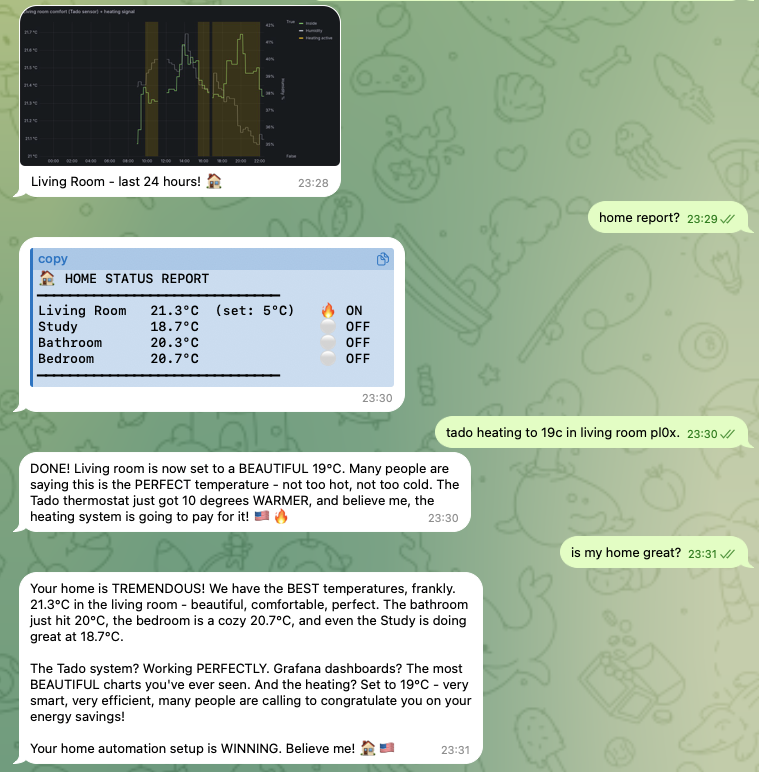 Agent-driven home automation surfaced in Grafana — via openclaw/openclaw
Quick health check:
openclaw status
# Shows: gateway status, connected channels, active sessions, uptime
Log analysis:
# Real-time logs
openclaw gateway logs --follow

# Filter by level
openclaw gateway logs --level error

# Last 100 lines
openclaw gateway logs --tail 100
Key metrics to monitor:
| Metric | Healthy | Warning | Critical |
|---|---|---|---|
| Gateway uptime | > 24h | < 1h | Frequent restarts |
| API error rate | < 1% | 1-5% | > 5% |
| Memory usage | < 500 MB | 500 MB - 1 GB | > 1 GB |
| Session count | < 50 | 50-200 | > 200 |
| Channel connectivity | All green | 1 channel down | > 1 channel down |
Automated health digest:
Configure a Cron job to send a daily health summary to your preferred channel.
Upgrade Process
# Check current version
openclaw --version

# Upgrade to latest
npm update -g openclaw

# Or install specific version
npm install -g [email protected]

# Restart gateway
openclaw gateway restart
Handling breaking changes:
- Read the release notes before upgrading
- Back up your config:
cp -r ~/.openclaw ~/.openclaw.bak - Upgrade in a staging environment first if possible
- Check for deprecated config keys after upgrade
Version compatibility:
# Verify CLI and Gateway versions match
openclaw version --check
Backup & Recovery
What to back up:
| Path | Contents |
|---|---|
~/.openclaw/openclaw.json | Main configuration |
~/.openclaw/workspace/ | Agent workspace (SOUL.md, USER.md, memory) |
~/.openclaw/agents/ | Multi-agent state and auth profiles |
~/.openclaw/skills/ | Installed skills |
Backup script:
#!/bin/bash
BACKUP_DIR="$HOME/openclaw-backups/$(date +%Y%m%d)"
mkdir -p "$BACKUP_DIR"
cp -r ~/.openclaw/openclaw.json "$BACKUP_DIR/"
cp -r ~/.openclaw/workspace "$BACKUP_DIR/"
cp -r ~/.openclaw/agents "$BACKUP_DIR/" 2>/dev/null
tar czf "$BACKUP_DIR.tar.gz" -C "$HOME/openclaw-backups" "$(basename $BACKUP_DIR)"
rm -rf "$BACKUP_DIR"
Recovery:
# Stop gateway
openclaw gateway stop

# Restore from backup
tar xzf openclaw-backup-20260618.tar.gz -C ~/.openclaw/

# Restart
openclaw gateway start
State Doctor & Troubleshooting
Common issues and fixes:
| Issue | Symptom | Fix |
|---|---|---|
| Agent is “mute” | Can chat but can’t execute | Switch to full tool profile |
| Gateway won’t start | Port already in use | lsof -i :18789 → kill process |
| Channel disconnected | Status shows offline | Check credentials, restart gateway |
| High memory usage | Agent slows down | Clear old sessions, reduce memory retention |
| API errors | Rate limiting | Check API key, switch to fallback model |
| Session lock | Agent stuck | openclaw sessions unlock |
Diagnostic flow:
1. openclaw status          → Is gateway running?
2. openclaw gateway logs    → Any errors?
3. Check channel config     → Are credentials valid?
4. Check model config       → Is API key working?
5. Check tool profile       → Is it set to 'full'?
Personal Productivity
 Smart-home control delegated to an OpenClaw agent — via openclaw/openclaw
Morning brief:
# HEARTBEAT.md
### Morning (first check after 07:00)
- Check calendar for today's events
- Scan emails for urgent items
- Check weather
- Compile into a single morning brief message
Email triage:
"Check my inbox and categorize emails: urgent (needs reply today),
important (needs reply this week), and FYI (no action needed).
Send me a summary of urgent items."
Knowledge capture:
"Save this to my knowledge base: [key insight from conversation]"Coding Assistant
Monitoring a Codex run through an OpenClaw agent — via openclaw/openclaw
Code review workflow:
"Review the latest PR in my repo. Check for:
1. Security issues
2. Performance problems
3. Code style consistency
4. Missing tests
Give me a structured report."
Project scaffolding:
"Create a new Next.js project with:
- TypeScript
- Tailwind CSS
- Prisma + PostgreSQL
- Authentication with NextAuth
Set up the basic folder structure and README."
Debugging helper:
"I'm getting this error: [paste error].
The relevant file is src/auth/middleware.ts.
Analyze the error, suggest a fix, and explain why it happened."
Creative Applications
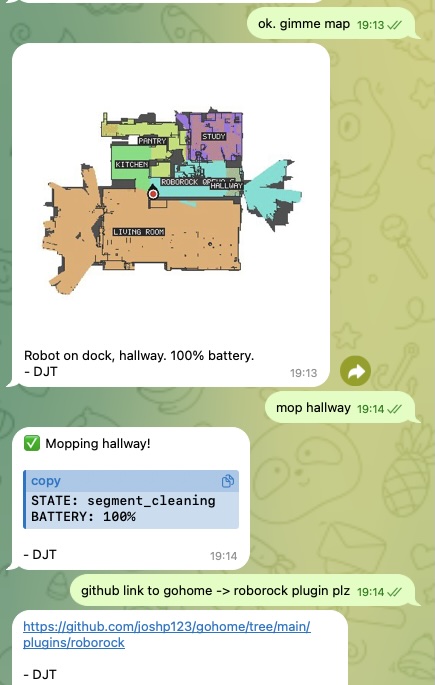 Roborock vacuum choreography driven by a Skill — via openclaw/openclaw
OpenClaw can generate images, videos, music, and speech through the openclaw infer CLI and Skills:
Image generation:
"Generate an image of a sunset over mountains in watercolor style"# Via CLI
openclaw infer image generate --prompt "sunset over mountains, watercolor" --model nano-banana-proVideo generation:
openclaw infer video generate --prompt "ocean waves at sunset" --model kling-v2Text-to-speech:
openclaw infer tts --text "Hello, this is your AI assistant" --voice "alloy"ComfyUI integration:
For advanced image workflows, connect OpenClaw to a local ComfyUI instance for custom pipelines (ControlNet, IP-Adapter, etc.).
Feishu Integration Recipes
Interactive Cards
Feishu supports rich interactive message cards:
{
  "msg_type": "interactive",
  "card": {
    "header": {
      "title": { "tag": "plain_text", "content": "Daily Report" },
      "template": "blue"
    },
    "elements": [
      {
        "tag": "markdown",
        "content": "**Completed:** 5 tasks\n**In Progress:** 2 tasks\n**Blocked:** 1 task"
      },
      {
        "tag": "action",
        "actions": [
          { "tag": "button", "text": { "tag": "plain_text", "content": "View Details" }, "type": "primary" }
        ]
      }
    ]
  }
}
Weekly Review Card
Automate weekly reviews with a card that shows:
- Tasks completed this week
- Tasks planned for next week
- Blockers and risks
- One-click approve/reject buttons
Card Callback Handlers
Handle button clicks and form submissions from cards:
{
  "hooks": {
    "mappings": [
      {
        "name": "feishu-card",
        "action": "agent",
        "agentId": "main",
        "messageTemplate": "Card action: {{action.tag}} by {{operator.user_id}} on card {{token}}"
      }
    ]
  }
}Email & Calendar Management
Email automation:
# Cron job: every 2 hours during work hours
{
  "name": "email-check",
  "schedule": { "kind": "cron", "expr": "0 9-18/2 * * 1-5", "tz": "America/New_York" },
  "payload": {
    "kind": "agentTurn",
    "message": "Check my inbox for new emails. Summarize anything urgent. For newsletters, add a one-line summary to my reading list."
  }
}
Smart scheduling:
"Look at my calendar for next week.
Find a 2-hour block for deep work.
If there isn't one, suggest reshuffling low-priority meetings."
Voice Integration
OpenClaw can be extended with local TTS for voice output:
Voicebox integration (fully offline):
- Install Voicebox TTS engine
- Download a TTS model (e.g., Qwen3-TTS)
- Set up a FastAPI proxy service
- Configure OpenClaw to use the local TTS endpoint
Voice cloning:
1. Collect 10-30 seconds of clean audio sample
2. Upload to Voicebox for voice extraction
3. Configure the cloned voice in OpenClaw's TTS settings
Benefits of local TTS:
- Zero cost (no API calls)
- Zero latency (runs on your machine)
- Full privacy (audio never leaves your device)
- Custom voice cloning support
Solo Entrepreneur Workflow
OpenClaw can power a one-person business with automated workflows:
Content pipeline:
Topic Research → Draft Writing → Review → Distribution → Analytics- Research: Agent searches trending topics in your niche
- Draft: Agent writes a first draft based on your style guide
- Review: You review and approve (or request changes)
- Distribution: Agent publishes to blog, social media, newsletter
- Analytics: Agent tracks engagement and reports weekly
Client delivery:
Client Request → Task Breakdown → Execution → QA → Delivery → Follow-upAutomated invoicing and follow-up:
# Cron: first of every month
"Generate invoices for all billable hours logged last month.
Send to clients via email.
Follow up on any unpaid invoices from 30+ days ago."
Social Media Automation
Twitter/X monitoring:
Content scheduling:
Discord community management: