What is Codex
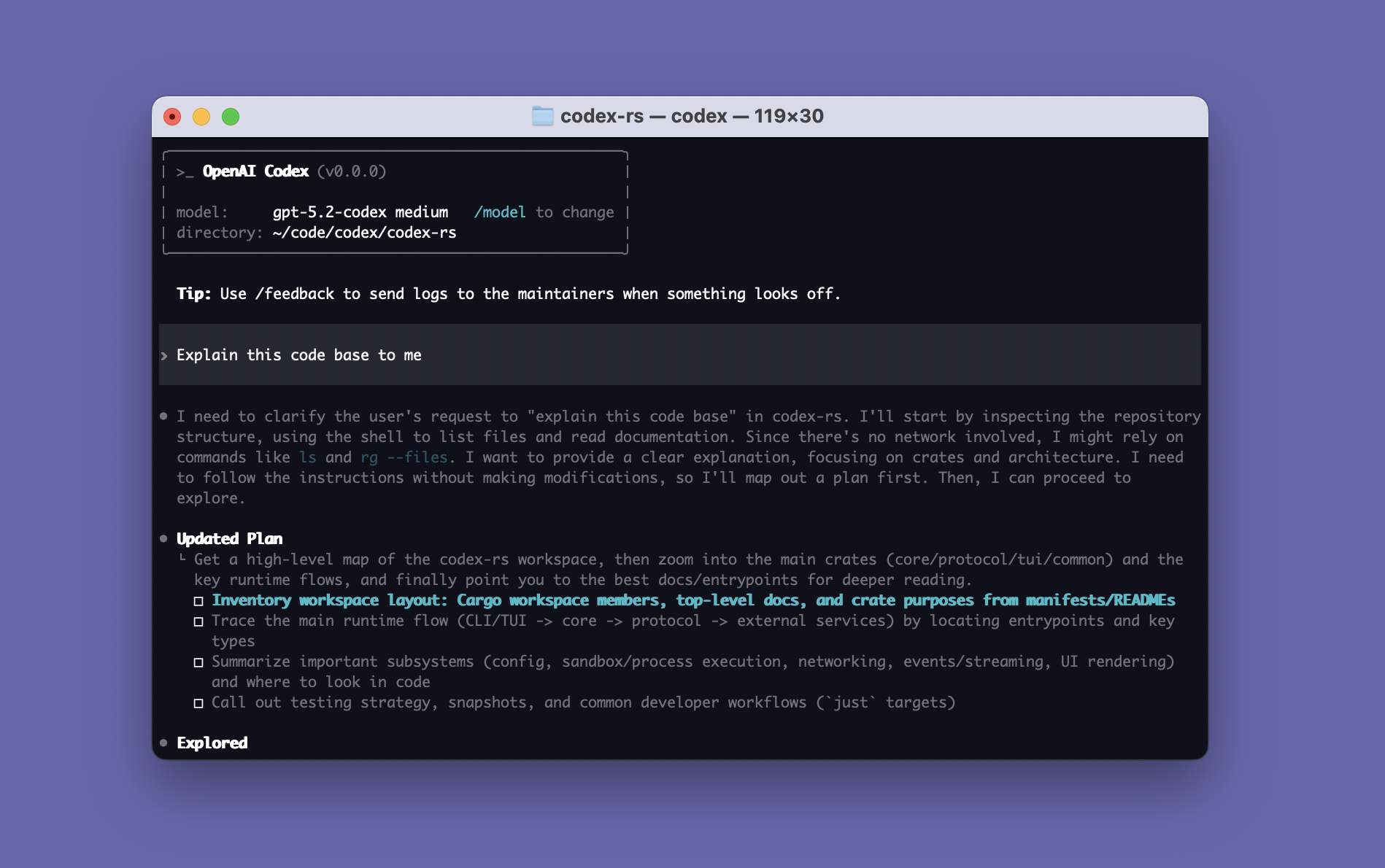
Codex is OpenAI’s official coding agent. You give it a goal; it reads your project, edits files, runs commands, runs tests, and hands you finished work to review — rather than just pasting a code snippet into a chat.
⚠️ Name collision: OpenAI shipped a deprecated code-completion model called “Codex” years ago. The tool documented here is the current agent product. If a tutorial references a
code-davinci-002model, it is about the dead model, not this.
A core framing worth memorizing: Codex is one agent with four entry points — the same account, the same agent, four surfaces to reach it through:
| Entry Point | Best for |
|---|---|
| Desktop App | Full-featured GUI: parallel threads, worktrees, Computer Use |
CLI (codex) | The most complete surface — every flag, every slash command, scriptable |
| IDE extension (VS Code) | Inline editing without leaving the editor |
| Cloud Web | Hand work to OpenAI’s machines and collect a PR later |
New users get lost choosing “which Codex to install.” They share a backend — pick by where you work, not by capability.
System Requirements
| Requirement | Details |
|---|---|
| OS | macOS 12+, Ubuntu 20.04+ / Debian 10+, or Windows 11 via WSL2 |
| Git (optional, recommended) | 2.23+ — needed for built-in PR helpers |
| RAM | 4 GB minimum (8 GB recommended) |
⚠️ Windows: native Codex is not supported — run it inside WSL2. Do not enable Full Access on Windows; there are reports of it deleting user files when run outside a sandbox.
Installation
The standalone installer is the recommended path — a self-contained binary, no Node.js dependency:
# macOS / Linux
curl -fsSL https://chatgpt.com/codex/install.sh | sh

# Windows (in PowerShell, inside WSL2)
powershell -ExecutionPolicy ByPass -c "irm https://chatgpt.com/codex/install.ps1 | iex"
Alternatives if you already manage tools through a package manager:
| Method | Command | When to use |
|---|---|---|
| npm | npm install -g @openai/codex | You already use npm globally; needs Node.js |
| Homebrew (macOS) | brew install --cask codex | You manage apps via brew; updates lag official by ~1 day |
| Update | codex update | Pull the latest version |
Verify the install with codex doctor — it self-checks the install, config, auth, and Git.
Authentication
Two auth paths, chosen by what you pay for:
| Method | Use case |
|---|---|
ChatGPT login (codex login) | Pro / Plus / Team / Enterprise subscribers — OAuth in a browser |
API key (printenv OPENAI_API_KEY | codex login --with-api-key) | Self-purchased API credits, or a third-party provider routed through config.toml |
On headless machines (CI, remote servers) where no browser opens, use device-code auth: codex login --device-auth. Check status with codex login status (exit code 0 = logged in, scriptable).
The Four Entry Points in Depth
| Dimension | Desktop App | CLI | IDE extension | Cloud Web |
|---|---|---|---|---|
| Slash commands | ~6 | 40+ (most complete) | ~8 | via @codex in PR |
| Worktrees | ✅ (first-class) | via git worktree | ❌ | n/a (runs remotely) |
| Computer Use | ✅ | limited | ❌ | ❌ |
| Scriptable | ❌ | ✅ (codex exec) | limited | ✅ (GitHub events) |
| Best surface | Parallel heavy work | Power users, automation | Inline edits | Unattended PR work |
Rule of thumb: learn the CLI first — it’s the superset. App and IDE hide features behind buttons that all exist as CLI flags.
Your First Task
cd your-project
codex
# then type: "Explain the architecture of this codebase"
Watch the agent loop in action: it reads files → reasons about what to do next → proposes an action (e.g. running a command or editing a file) → waits for your approval → applies → verifies. This loop — not the chat reply — is what makes it an agent.
For a hands-on edit, ask it to “rename the data variable to payload across this module and run the tests.” Approve each step, observe the read→propose→apply→verify cycle, then git diff to see what changed.
Quick Start Path
Five steps from zero to productive:
- Install via the standalone installer above, run
codex doctor. - Log in —
codex loginfor ChatGPT subscribers, or API key for credits. - Write an
AGENTS.mdat your project root with the non-obvious rules (see tab 3). - Pick your approval mode — start in the default (asks before acting), open up as you trust it.
- Learn
/clearand/model— the two slash commands you’ll use every session.
💡 The Bitter Lesson: don’t optimize your workflow for today’s model. Build habits and harnesses that pay off more as models get stronger.
Codex vs Claude Code vs ChatGPT
| Dimension | Codex | Claude Code | ChatGPT |
|---|---|---|---|
| Vendor | OpenAI | Anthropic | OpenAI |
| Type | Terminal coding agent | Terminal coding agent | Chat assistant |
| Reads/edits real files | ✅ | ✅ | ❌ (paste only) |
| Project instructions file | AGENTS.md | CLAUDE.md | n/a |
| Config file | config.toml | settings.json | n/a |
| Sandbox + approvals | ✅ (two knobs) | ✅ (permission modes) | n/a |
| Mental-model overlap with Codex | — | ~90% | low |
If you already use Claude Code, you already know ~90% of Codex’s mental model — see the migration section in tab 6.
The Agent Loop
Every turn, Codex runs the same loop. Understanding it is the single highest-leverage thing you can do:
 The read → reason → propose → approve → apply → verify loop
1. READ       — load relevant files, git status, prior turns
2. REASON     — decide the next action (run cmd? edit file? ask user?)
3. PROPOSE    — surface the action; if high-risk, pause for approval
4. APPLY      — execute the approved action
5. VERIFY     — re-read, run tests, check the result
       ↺ repeat until the goal is met or it asks for help
Why this matters: a chatbot emits text. An agent acts, observes the result, and corrects course. The loop is where Codex earns its keep — and where the harness (AGENTS.md, config, approval policy) shapes effective context and iteration quality.
Threads
A thread is the unit of conversation and context in Codex. Each thread carries its own message history and accumulated state. Practical implications:
- One task per thread — don’t pile unrelated work into one thread; context rots.
- Resume — Codex can resume a prior thread, picking up its accumulated context.
- Parallel — the Desktop App and worktrees let several threads run at once without crosstalk (see tab 5).
The Golden Rule
Codex is a capable partner with a leash, not a wishing well. Your job is to give direction, draw the boundary of what it may touch, and correct course when it drifts.
This single sentence predicts whether you’ll get good results. Codex is not magic — it’s a strong executor that needs steering. Give it a goal (not a step-by-step recipe), constrain what it’s allowed to do (sandbox + approval), and redirect when it makes a wrong assumption.
Context Window
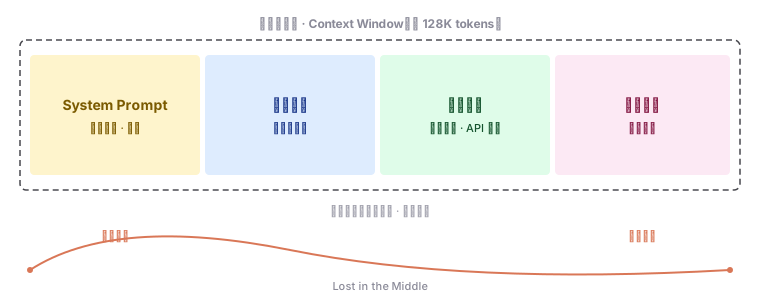 What fits in the model’s working memory per turn
Codex’s effective working memory per turn is finite. As a thread grows, earlier turns, tool outputs, and file reads accumulate. Two practical consequences:
- Compact proactively —
/compactsummarizes the thread to reclaim space; do it before quality degrades, not after. - “1M context” is not 1M usable — system prompts, tool definitions, and retrieved files consume a large slice; the effective budget for your task is much smaller than the headline number.
Approval Modes & Sandbox
Codex exposes two independent knobs, not one. This is the most common beginner confusion:
| Knob | Controls | Config key | CLI flag | Short |
|---|---|---|---|---|
| Sandbox mode | how much it can touch (FS + network) | sandbox_mode | --sandbox | -s |
| Approval policy | whether it asks before each step | approval_policy | --ask-for-approval | -a |
Three sandbox modes:
| Mode | Can edit files? | Can use network? | Use for |
|---|---|---|---|
read-only | ❌ | ❌ | Code review, analysis, planning — “don’t touch my stuff” |
workspace-write | ✅ (project dir only) | ❌ off by default | Daily development default — low friction |
danger-full-access | ✅ (entire machine) | ✅ | Isolated containers / VMs only — the name says danger |
Three approval policies: untrusted (ask a lot), on-request (the daily default), never (headless/CI only).
💡 Golden combo for daily dev:
workspace-write+on-request. The agent edits freely inside your project, pauses before anything that escapes it.⚠️
--yolo=danger-full-access+never. It exists for throwaway containers. Never run it on your real machine — there are documented cases of it deleting user files.
Models & Reasoning Effort
Two dials govern “how hard Codex thinks”:
- Model (
/modelormodel = "..."in config) — pick by capability vs cost. Don’t default to the strongest for trivial edits; don’t skimp on a hard refactor. - Reasoning effort (
/effortor the effort dial) — low/medium/high/xhigh. This is more impactful than switching models and cheaper to adjust. A 30-second rename needs low effort; a module refactor needs high.
Match the dial to the task, not to your mood. See the model-selection section in tab 6 for a task→model+effort table.
Slash Commands
Slash commands control Codex itself (switch model, clear context, view status), not the model. They only count when / is the first character of your message. Type / to see what’s available in your current entry point.
Daily CLI commands, grouped by what you’re doing:
| Goal | Command |
|---|---|
| Set project rules scaffold | /init (generates AGENTS.md) |
| Switch model / effort | /model, /effort |
| See current config | /status |
| Clear thread, start fresh | /clear |
| Compact context | /compact |
| Review current diff | /diff, /review |
| Manage MCP servers | /mcp |
| Manage skills | /skills |
| Manage agents | /agents |
| Memory control | /memories |
| Diagnostics | /doctor |
⚠️ The CLI exposes 40+ slash commands; the Desktop App exposes ~6, the IDE ~8. Don’t expect the CLI’s full list in the GUI surfaces.
Plan Mode & Prompting
Plan first, then execute. For anything non-trivial, describe the goal and let Codex produce a plan; review the plan, then let it execute. Give goals and constraints, not step-by-step recipes — the agent loop is better at sequencing than you are.
Prompting principles:
- Give context, not more words. Point at the files, state the goal, list constraints. Verbosity doesn’t help; specificity does.
- State what NOT to do — negative instructions (“don’t touch
legacy/”, “use pnpm not npm”) are sharper than positive ones. - One task per message — the agent loop rewards focus; multi-task prompts dilute it.
Common Workflows
The four daily flows:
| Workflow | Shape |
|---|---|
| Explore | read-only — “explain this module”, “find where X is configured” |
| Fix a bug | paste the error, point at the failing test, let it trace root cause → patch → verify |
| Refactor | name the smell, constrain scope, review the diff before applying |
| Write tests | point at the code, state coverage goal, let it generate + run |
AGENTS.md
AGENTS.md is Codex’s per-project instruction file — read at the start of every run, before it acts. It’s the Codex equivalent of Claude Code’s CLAUDE.md (same concept, different name and discovery rules).
Why it exists: every run starts from a blank slate. Without AGENTS.md, you re-explain “use pnpm, don’t touch legacy/, run tests this way” every single time.
Discovery chain (3 layers, nearer wins):
- Global —
~/.codex/AGENTS.md(orAGENTS.override.md, which wins). Your cross-project defaults. - Project root —
AGENTS.mdat the Git root. Team-shared rules. - Subdirectories — walking from root to your current dir, each directory can contribute an
AGENTS.md. The closest one to your working directory wins on conflicts.
~/.codex/AGENTS.md          ← global defaults (your preferences)
project-root/AGENTS.md      ← team rules (overrides global on conflict)
project-root/src/AGENTS.md  ← subdirectory rules (closest wins)
💡 Conflicts resolve “nearest wins” — project rules override personal preferences, subdirectory rules override project rules. This is exactly the team-collaboration behavior you want.
Writing Effective AGENTS.md
| Do | Don’t |
|---|---|
| Write WHY (hidden constraints, invariants, workarounds) | Write WHAT (the code already says that) |
| Negative instructions (“don’t use pattern X”) | Positive-only rules (“use pattern Y”) |
| Project-specific gotchas (build order, incompatible versions) | Derivable facts (architecture, file paths) |
| Keep it under ~200 lines | Dump everything — compliance drops past ~200 |
Highest-leverage use: treat it as a feedback loop. When Codex makes a wrong assumption about your codebase, don’t just correct it in chat (that’s one-shot) — have it write the correction into AGENTS.md. Over a few weeks the file fills with the pitfalls it’s already been caught on, and new sessions stop repeating those errors.
config.toml Basics
config.toml is the behavior knobs file — machine settings the agent executes verbatim, distinct from AGENTS.md (natural-language guidance). Same idea as a car: AGENTS.md is the owner’s manual, config.toml is the dashboard knobs.
Two locations:
| Layer | Path | Affects | When loaded |
|---|---|---|---|
| User | ~/.codex/config.toml | All your projects | Always |
| Project | <repo>/.codex/config.toml | This repo only | Only if the project is trusted |
⚠️ Trust gate: project-level
.codex/config.tomlis ignored for untrusted projects. This prevents a malicious cloned repo from silently granting itself permissions. If your project config “isn’t taking effect,” check whether you trusted the project on first open.
Minimal config:
# ~/.codex/config.toml
model = "gpt-5.5"
approval_policy = "on-request"
sandbox_mode = "workspace-write"
config.toml Advanced
Override per-run without editing the file:
codex -c model="gpt-5.5" -c approval_policy="never"Switch between preset configurations with profiles:
codex --profile ci # loads the [profiles.ci] blockEnable network inside workspace-write (it’s off by default — a common gotcha):
[sandbox_workspace_write]
network_access = true
Config Reference
The high-frequency keys:
| Key | Default | What it does |
|---|---|---|
model | (latest) | Default model |
approval_policy | on-request | When to pause for approval |
sandbox_mode | workspace-write | FS + network boundary |
sandbox_workspace_write.network_access | false | Allow network in workspace-write |
web_search | (off) | Enable web search |
[features] | — | Toggle experimental features |
[mcp_servers.*] | — | MCP server definitions (see tab 4) |
ℹ️ Full reference:
developers.openai.com/codex/config-reference.
Permissions & Approval Policy
Configured via the two knobs above. For daily dev, you rarely touch this after initial setup — workspace-write + on-request covers most work. Open up to never only for trusted, containerized automation; lock down to read-only when handing the repo to Codex for analysis only.
Sandbox & Approvals
The sandbox isolates filesystem writes to the workspace and gates network egress. Key behaviors:
.gitis read-only protected inworkspace-write— Codex won’t corrupt repo metadata.- Network is off by default even when writes are allowed — opt in explicitly.
danger-full-accessremoves all boundaries — container/VM only.
⚠️ Windows warning (verified, must carry): there are multiple reports of Full Access mode on Windows deleting user files (240–700 GB reported lost). Never enable Full Access on Windows; use WSL2 and stay in
workspace-write.
Hooks (Lifecycle)
Admins can lock down hooks via requirements.toml:
allow_managed_hooks_only = trueThis ignores user/project/session hook configs while still allowing managed hooks. It’s only effective in requirements.toml — putting it in config.toml does nothing. Use it for enterprise governance (see tab 6).
MCP — External Tools
MCP (Model Context Protocol) lets Codex call external tools — fetch live docs, query a database, drive a browser. Codex supports exactly two transport types:
| Transport | For | How |
|---|---|---|
| STDIO | Local tools | Give a launch command; needs the tool installed locally |
| Streamable HTTP | Cloud services | Give a URL + Bearer token, or codex mcp login for OAuth |
Add a server two ways:
# CLI (fastest) — context7 = free dev-docs server
codex mcp add context7 -- npx -y @upstash/context7-mcp
Or hand-write in config.toml:
[mcp_servers.context7]
command = "npx"
args = ["-y", "@upstash/context7-mcp"] How the model decides to call an external tool
💡 All MCP config lives in
config.toml— there’s no--scope. Scope is decided by which file you edit (~/.codex/= global,<repo>/.codex/= project, needs trust). CLI and IDE share this one config.
Subagents
A subagent is a specialist agent with its own thread, model, instructions, and permissions. Codex runs several in parallel and each returns only a summary to the main thread — keeping noisy intermediate output out of your main context.
 Main agent dispatches work; subagents return summaries, not raw output
Two problems subagents solve:
- Context pollution — one big task’s logs flood the main thread; subagents keep the mess isolated.
- Context rot — long threads degrade; splitting keeps each context short and focused.
⚠️ Counter-intuitive: Codex does not auto-spawn subagents. It only dispatches them when you explicitly ask it to. Don’t expect parallelism unless you request it — this prevents runaway cost.
Define a custom agent as a TOML file in ~/.codex/agents/ or <repo>/.codex/agents/:
# ~/.codex/agents/reviewer.toml
name = "reviewer"
model = "gpt-5.5"
instructions = "Review diffs for correctness bugs and security issues."
Agent Skills
A Skill is a reusable workflow packaged as a directory with a SKILL.md file (plus optional scripts/resources). Write the workflow once; Codex invokes it when needed.
 A skill: a directory with SKILL.md plus optional scripts and references
Minimal SKILL.md:
---
name: summarize-diff
description: Summarize uncommitted changes and flag risks. Use when the user asks for a change summary.
---

Summarize the diff, group changes by file, and call out anything risky
(uncommitted secrets, large deletions, test coverage gaps).
⚠️ Common pitfall (from outdated tutorials): the frontmatter requires
name+description— there is notriggerfield. Triggering is done by semantic matching ondescription, not keywords. And the directory is under.agents/skills, not~/.codex/skills. Follow official docs, not old blog posts.
Progressive loading: at startup Codex loads only each skill’s name, description, and path. The full SKILL.md is loaded only when the skill is used — keeping context lean.
Plugins
A plugin is a one-install bundle of capabilities — skills + agents + hooks + MCP servers — packaged so you install a whole setup at once instead of hand-configuring each piece. Use plugins when a community or team has already assembled a coherent toolkit; use individual skills/MCP when you need just one thing.
Rules & Hooks
Rules and hooks add execution checkpoints and triggers:
- Rules — conditional instructions loaded based on context (e.g. framework-specific rules).
- Hooks — shell commands fired on lifecycle events (pre-tool-use, post-turn, etc.) for deterministic automation (format on save, block a command, notify).
Hooks can be defined in config.toml or per-agent; enterprise can lock them to managed-only (see the allow_managed_hooks_only note above).
The Command → Agent → Skill Model
Codex’s orchestration mirrors Claude Code’s three-layer model:
| Layer | Role | Context |
|---|---|---|
| Command (user trigger) | Entry point; orchestrates | Shared main session |
| Agent / Subagent | Executor | Independent thread |
| Skill | Knowledge pack | Injected into caller |
Choosing an Extension Type
| Need | Use |
|---|---|
| Call an external service/tool | MCP |
| Parallel isolated execution, different models | Subagent |
| Reusable workflow written once | Skill |
| Whole toolkit installed at once | Plugin |
| Deterministic automation on lifecycle events | Hook |
Why Harness Matters
Output quality = f(effective_context, model_capability, iteration_loops)
The harness — AGENTS.md, config, approval policy, skills, hooks — shapes effective context and iteration quality. Prompts alone can’t replicate it: prompts are advisory, but the harness enforces tool restrictions, loads rules lazily by path, schedules parallel subagents, and persists state across sessions.
 The layers prompts can’t reach — what the harness does for you
Non-Interactive Mode (codex exec)
codex exec runs Codex without the TUI — give it a prompt, it works, prints the result, exits. Built for “no human in the loop” scenarios: scripts, cron jobs, CI pipelines.
codex exec "Summarize this repo's structure and list 5 areas to watch"Key design — progress to stderr, result to stdout. This separation lets you pipe the clean result to the next program while still seeing progress on screen:
# machine-readable event stream
codex exec --json "find flaky tests" | jq ...

# save just the final message to a file
codex exec -o result.txt "write release notes for last 10 commits"
⚠️ Non-interactive mode defaults to read-only sandbox. To let it edit files, raise the sandbox explicitly (
-s workspace-write) and approvals (-a neverfor fully unattended).
Execution Policy
codex exec can be governed by an execution policy — rule-based control over what it’s allowed to do unattended. Define rules to constrain which commands may run, which paths may be written, etc. Essential for safe CI use.
Git & GitHub Integration
Codex integrates with Git/GitHub on two tracks:
| Track | Where | How |
|---|---|---|
Local /review | your terminal | review the current diff without touching anything, before you open a PR |
| Cloud PR review | GitHub PR comments | @codex review triggers a cloud review; @codex fix applies a fix and pushes back |
Cloud review requires a paid plan + the repo authorized to Codex cloud; local /review needs none of that.
Customize review rules via the Review guidelines section of AGENTS.md — e.g. “every route must have auth middleware”, “no PII in logs”. Codex then flags violations by your standards, not generic ones.
GitHub Actions / CI
The openai/codex-action runs Codex on GitHub-hosted runners, triggered by repo events (PR opened, CI failed). It’s the CI/CD track — distinct from the Desktop App’s local Automations.
Minimal workflow:
# .github/workflows/codex-review.yml
on: [pull_request]
jobs:
  review:
    runs-on: ubuntu-latest
    steps:
      - uses: actions/checkout@v4
      - uses: openai/codex-action@v1
        with:
          prompt-file: .codex/prompts/review.md
          sandbox: workspace-write
💡 Two automation tracks, don’t mix them: GitHub Action (cloud runner, repo events, team collaboration) vs Desktop App Automation (your machine, cron schedule, private tasks). Match the track to where the work lives.
Worktrees — Parallel Isolation
A worktree gives each Codex thread an isolated copy of the repo’s files (sharing .git metadata). This lets multiple tasks run in parallel without overwriting each other.
git worktree add ../feature-x -b feature-x
cd ../feature-x && codex # isolated work on feature-x- Same branch can’t be checked out in two worktrees simultaneously.
- Worktrees + Handoff (Desktop App) move work between foreground/background — e.g. kick off a long refactor in a background worktree while you keep coding up front.
- Clean up stale worktrees periodically — each holds a full file copy.
Automations
The Desktop App’s Automations run scheduled background tasks on your machine — “every morning, summarize yesterday’s commits.” Distinct from CI (GitHub runners) — these run only while your machine is on. Pair with worktrees to keep each scheduled task isolated.
Computer Use
Computer Use gives Codex “hands” — it can see the screen, click UI, drive a browser. Scope: GUI automation, browser testing, operating desktop apps. Risk is high — it can act on anything visible; confine it to workspace-write or a container, and watch the first runs closely.
Integrations (Slack / Linear / SDK)
Beyond the CLI, Codex can be summoned from Slack and Linear, and embedded in your own product via the SDK. Use these to make Codex a node in an existing workflow rather than a separate destination — e.g. a Slack message triggers a Codex task, the result posts back to the channel.
Memory System
Codex’s memory is two systems, not one:
| System | Who writes | When it loads | Reliability |
|---|---|---|---|
AGENTS.md | You (or Codex on your behalf) | Every run, before acting | Guaranteed — must-take rules go here |
| Memories | Codex itself, async | Next run, when relevant | Best-effort — background, not real-time |
⚠️ Two common mistakes: (1) assuming memory is real-time — it writes after a session idles, so testing it immediately fails; (2) assuming memory replaces
AGENTS.md— it doesn’t. “Must always apply” rules go inAGENTS.md; never bet them on memory.
Chronicle is an experimental, Codex-specific memory fed by screen content (Pro + macOS only, excludes EU/UK/Switzerland). Review its privacy implications before enabling.
Security & Risk Boundaries
The decision framework for “should I let Codex touch this”:
| Sensitivity | Recommended config |
|---|---|
| Production repo, real data | read-only + untrusted — analysis only |
| Daily development | workspace-write + on-request |
| Trusted, isolated refactor | workspace-write + never |
| Throwaway container | danger-full-access + never (--yolo) — never your real machine |
⚠️ Non-negotiables: never
--yoloon your real machine; never Full Access on Windows; treat untrusted cloned repos’.codex/as untrusted (Codex does this by default — don’t override it).
Enterprise & Governance
Operating Codex across a company (vs one person) needs governance:
- Managed settings — IT-deployed org config that users can’t relax.
requirements.toml—allow_managed_hooks_only = truelocks hooks to managed-only.- Trust policies — control which projects’
.codex/layers load. - Allowlists — restrict MCP servers, tools, and models to approved sets.
Pricing & Third-Party Models
Billing is either ChatGPT subscription (Pro/Plus/Team/Enterprise — usage included) or API credits (pay per token). Verify current pricing on OpenAI’s site — numbers drift; cite with an “as of” date.
Third-party models: route Codex to other providers (e.g. DeepSeek, local models) via model_provider in config.toml. Useful for cost control, data residency, or offline use.
Windows Notes & Troubleshooting
Windows: run inside WSL2 (native is unsupported). The Full Access data-loss reports are Windows-specific — stay in workspace-write.
Common failures:
| Symptom | Likely cause / fix |
|---|---|
| Install fails / OAuth hangs | Network/proxy; the install script and browser OAuth may need a clean connection |
codex login status exits non-zero | Not logged in — re-run codex login or check the API key |
| Project config “not taking effect” | Project not trusted — trust it on first open |
| It “won’t edit files” | Sandbox is read-only — raise to workspace-write |
| Wrong model every session | Set model in ~/.codex/config.toml instead of /model each time |
Migrating from Claude Code
Your Claude Code mental model transfers ~90%. Concept map:
| Claude Code | Codex | Note |
|---|---|---|
CLAUDE.md | AGENTS.md | Same concept; discovery/override rules differ |
settings.json | config.toml | TOML, not JSON; two-layer (user/project) |
| Permission modes | sandbox_mode + approval_policy | Two knobs, not one |
/model, /clear, /compact | same names | Mostly identical |
| Subagents | Subagents | Codex won’t auto-spawn — you must ask |
| Skills | Skills | .agents/skills, name+description (no trigger) |
/review | /review + @codex review | Local + cloud tracks |
The agent loop, “read before act,” and “give goals not steps” habits carry over verbatim.
Command & Config Cheat Sheet
# install / auth
curl -fsSL https://chatgpt.com/codex/install.sh | sh
codex login                      # ChatGPT OAuth
printenv OPENAI_API_KEY | codex login --with-api-key
codex doctor                     # self-check

# daily CLI
codex                            # interactive
codex exec "..."                 # non-interactive
codex -s workspace-write -a on-request

# slash commands (in-session)
/init  /model  /effort  /status  /clear  /compact  /diff  /review  /mcp  /skills  /agents  /memories

# config.toml essentials
model = "gpt-5.5"
approval_policy = "on-request"
sandbox_mode = "workspace-write"
[sandbox_workspace_write]
network_access = true
Best Practices & FAQ
Beyond the platitudes, what actually works:
- AGENTS.md as feedback loop — every wrong assumption Codex makes becomes a line in it.
- Match effort to task, not model to task —
/effortis cheaper and more impactful. - One task per thread — context rot is real; don’t pile work in.
- Compact before quality drops, not after.
- Containerize
--yolo— never on real machines.
FAQ (short):
- Does Codex remember across sessions? Only what’s in
AGENTS.md(reliable) and Memories (best-effort). - Can I use a non-OpenAI model? Yes, via
model_providerin config. - Is it safe to let it edit files? In
workspace-write+on-request, yes — it pauses before escaping the project. - CLI vs Desktop App? CLI is the superset; learn it first.
Glossary
| Term | Meaning |
|---|---|
| Agent loop | read → reason → propose → apply → verify, per turn |
| Thread | one conversation + its context |
| AGENTS.md | per-project instruction file, read every run |
| config.toml | behavior-knobs config (model, sandbox, approvals) |
| Sandbox | FS/network boundary (read-only / workspace-write / danger-full-access) |
| Approval policy | when Codex pauses to ask (untrusted / on-request / never) |
| MCP | Model Context Protocol — external tools via STDIO or HTTP |
| Subagent | specialist agent with its own thread, returns summaries |
| Skill | reusable workflow in SKILL.md |
| Worktree | isolated repo file-copy for parallel work |
codex exec | non-interactive mode for scripts/CI |
| Chronicle | experimental screen-fed memory (Pro + macOS) |